Open Creati is a workspace for AI video creation, image generation, and storyboarding. Use it to turn a written brief into a scene, animate a product photo, or guide a dance clip with compatible reference media. This guide walks through a product promo in five steps and explains how to plan a Seedance video featuring a real presenter. Explore the Open Creati workspace
What is Open Creati AI good for?
Open Creati fits video creation projects where you need to develop a shot from a brief, reuse approved visuals, or compare several takes before editing. Match the tool to the clip you want to make.
- Ecommerce product demos. Animate an approved product photo into a slow reveal for a storefront or launch page. Use the opening frame to anchor the packaging and check that the label and shape hold throughout the shot. Image to Video
- UGC-style ads. Draft a creator-led demo around one use case, such as showing how a travel mug fits in a cup holder. If the shoot calls for a real presenter, confirm the supported likeness workflow before uploading their reference. AI UGC Video Generator
- TikTok, Reels, and YouTube Shorts. Start with a 9:16 opening shot that shows the action immediately. Generate a few takes of the same hook in Open Creati, then review which one reads most clearly on a phone. AI Bulk Video Generator
- Dance clips and music visuals. Plan the move around a beat, frame the dancer head to toe, and use a compatible motion reference where supported. For a song teaser, pair a visual reference with a selected audio segment. Reference to Video · AI Music Video Generator
- Short films and pitch trailers. Use Open Creati’s AI Canvas to storyboard an opening shot, a reaction, and a close-up. Keep the same character and lighting references across scenes, then review them as a sequence. AI Canvas
- Tutorials and explainers. Generate a short scene to introduce a topic or illustrate one step. For a coffee-brewing tutorial, a close-up of water meeting the grounds can serve as an insert alongside the recorded lesson. Text to Video
- Agency concepts and ad testing. Use one product image and a shared brief to make several takes in a batch. For the next batch, change one creative choice, such as the opening camera move, so the team can compare the results. AI Bulk Video Generator
Start with the right AI video tool
Choose your Open Creati video creation workflow by the asset you already have. A written scene, an approved product photo, a presenter reference, and a clip that needs revision each call for a different starting point.
| Starting point | Open Creati tool | What to do |
|---|---|---|
| A script or shot description | Text to Video | Describe the subject, action, framing, and camera movement. |
| A product photo or approved storyboard frame | Image to Video or Photo to Video | Animate a still. Add an ending frame when the selected model offers that control. |
| Media that defines the subject, movement, or sound | Reference to Video | Assign a clear role to each compatible image, video, or audio reference. |
| An existing clip | Video to Video | Select a model that accepts video input and describe the edit you want. |
| A campaign with multiple shots | AI Canvas or AI Bulk Video Generator | Use Canvas to connect scenes and references. Use Bulk Video to generate independent takes from a shared setup. |
The dedicated free video generator is a quick way to test the idea at five seconds and 480p. For a production brief, the full workspace gives you more room to direct the shot through model-specific controls for length, aspect ratio, framing, references, and sound. Free AI Video Generator · AI Video Generator
AI video creation on Open Creati in five steps
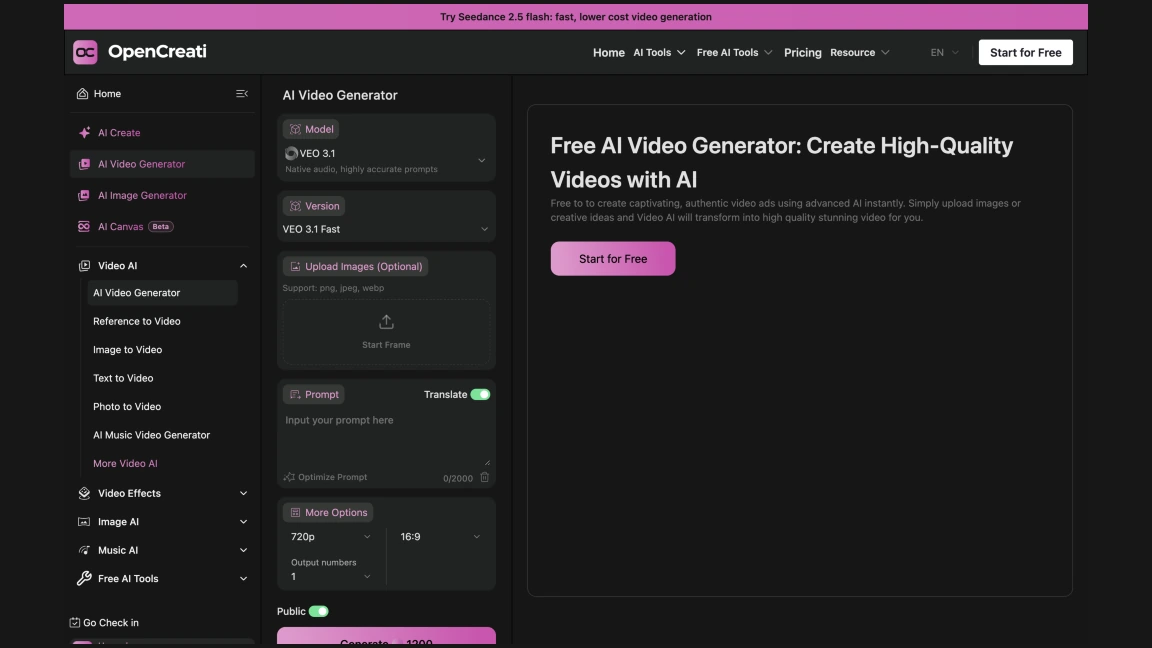
Choose a model first. Its input modes and output settings determine which controls appear.
- Plan the shot and format. Start with one action and one camera move. For a vertical product promo, write down the opening frame, the product reveal, and what should be visible at the end.
- Pick a mode and model. Open the generator and choose Video. For the bottle promo, select Image to Video and add an approved product photo as the first frame. Use Reference to Video if the shot needs separate references for the subject and motion.
- Write a prompt you can review against the result. Name the subject, action, camera movement, light, and final framing. If the model supports an end frame, use it to specify exactly where the shot should land.
- Generate a short draft. Choose 9:16 for a vertical ad if available. Check the credit estimate, visibility, and audio controls before generating. Watch the clip for product shape, hand movement, framing, and whether it holds on the final reveal.
- Revise one variable at a time. If the reveal feels rushed, slow the move before changing the lighting or the model. For a multi-shot promo, keep the source images, prompts, and alternate takes together in AI Canvas. Create workspace · Canvas Quick Start
Keep the matte cobalt-blue bottle and white cap from the starting image. In warm window light, make a slow push-in toward the bottle on the stone plinth. End with a steady close-up and hold the product in the center of the frame.
How to plan a Seedance video with a real person
The Seedance 2.0 and 2.5 families support real-person video generation through authorized portrait assets, where that workflow is enabled. If your ad features a real presenter, start by obtaining permission to use their likeness and confirming which Seedance version and portrait input route are available on your Open Creati account. BytePlus treats authorized portrait assets and ordinary reference uploads as distinct inputs. BytePlus portrait asset guide · Open Creati Privacy Policy
Once you have an eligible presenter reference, give each asset a specific job. Assign the portrait to the presenter’s appearance and use the product photo to define the bottle’s shape and color. Write the shot direction in plain language, such as “The presenter picks up the bottle, turns it toward the camera, and pauses so the cap and silhouette are visible.” Review the face, lip sync if used, and product details before sharing. If you need help confirming an eligible setup, email [email protected]. Reference to Video
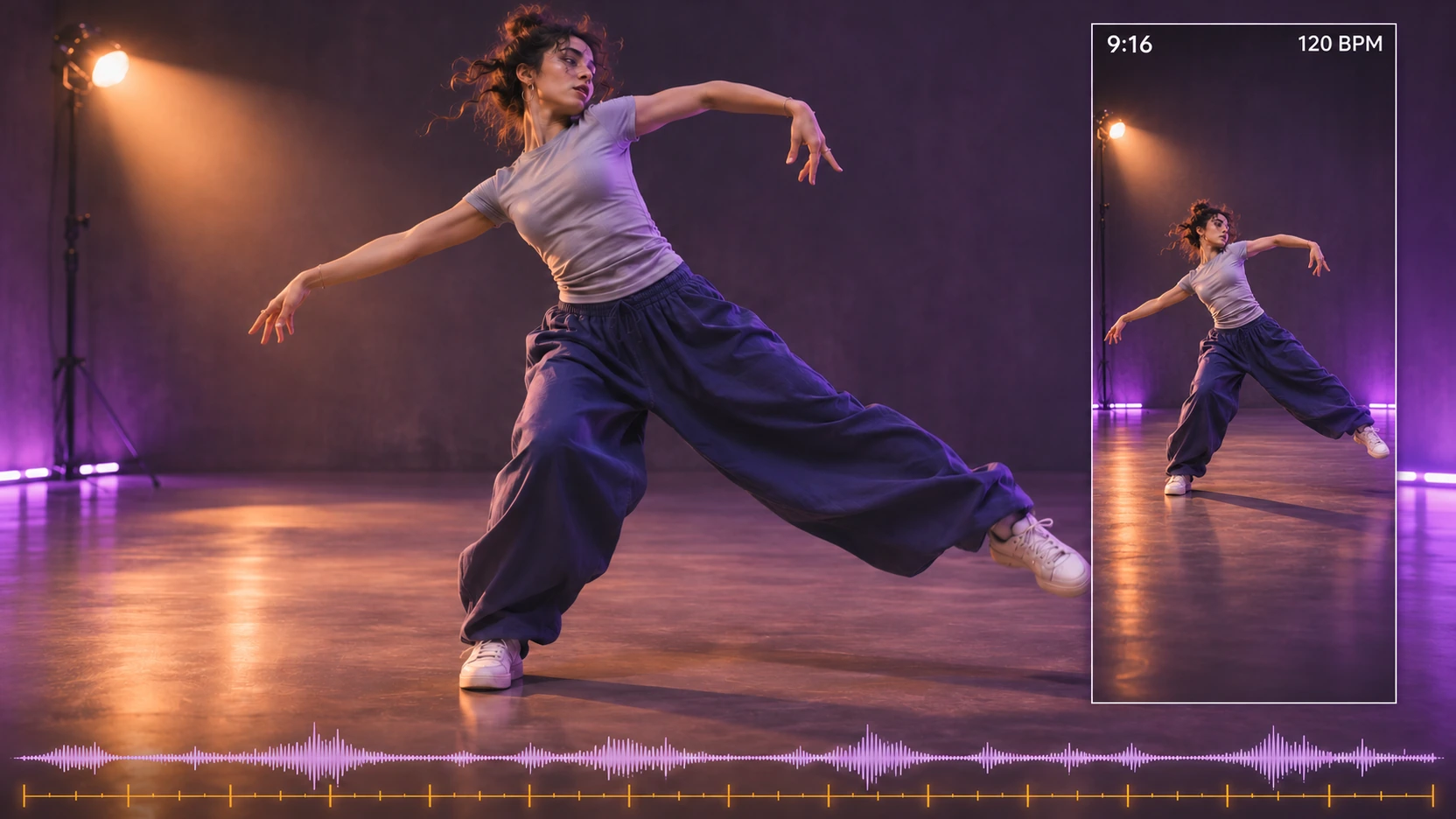
Illustrated dance-video concept with a full-body shot, a vertical preview, and beat markers for timing the turn.
For a dance clip, use an eligible choreography reference when the selected Seedance version accepts video references. Describe one move in the prompt, such as a side step into a turn that ends on the downbeat. Leave enough room to keep the dancer’s hands and feet in frame. Seedance 2.5 Flash
AI video models to try on Open Creati
For AI video creation on Open Creati, start with the control that matters most for the shot. That might be reference media for a dance clip, synchronized sound for a scene, or a defined opening frame for a product reveal.
| Model or family | Use it for | Where to start |
|---|---|---|
| Seedance 2.5, 2.5 Flash, and 2.0 | Reference-led sequences, product promos, and shots with synchronized sound where supported. Flash offers clips up to 30 seconds and optional 4K upscaling. | Seedance 2.5 Flash · Seedance 2.0 |
| Kling 4.0 and 3.0 | Product reveals, camera movement, and short scenes guided by text or a starting image. | Kling 4.0 · Reference to Video |
| Google Veo 3.1 and Gemini Omni | Veo for audio-led scenes. Gemini Omni for working from prompts and compatible references. | AI Video Generator · Gemini Omni |
| Wan 3.0 | Clips guided by prompts, frames, or compatible reference media. | Wan 3.0 |
| MiniMax H3 | Testing a simple motion idea in the dedicated free generator. | Free MiniMax H3 |
The broader catalog includes PixVerse, Hailuo, Vidu, Runway, Luma, FLUX, Happy Horse, and Grok Imagine. Use the video hub to browse these families alongside effects and templates. Check the active form for the version, available modes, duration, resolution, and credit estimate before committing to a production run. Open Creati model library
AI image models for storyboards and video creation
Create or clean up your source frame before animating it. For the bottle promo, approve one product image for the starting frame and use the same visual direction for the thumbnail or closing frame.
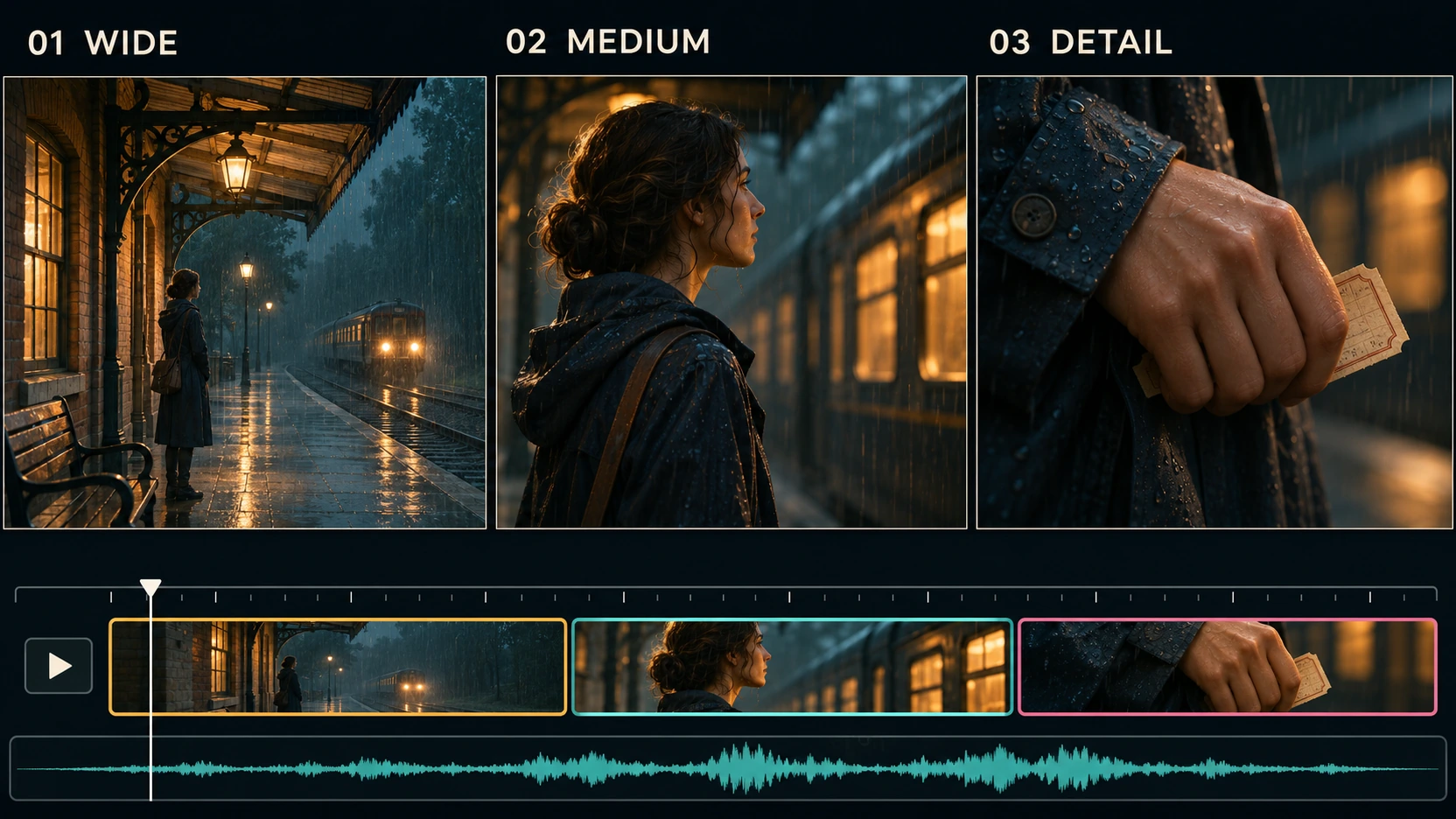
Illustrated short-film storyboard. A wide shot establishes the station, a medium shot shows the traveler’s reaction, and a detail shot reveals the ticket.
For a short film, generate a still for each shot you want to animate. On the train platform, keep the raincoat and warm station lights consistent across the wide shot, the traveler’s reaction, and the close-up of the ticket. Then write a separate motion prompt for each frame.
| Image model | What to make | Where to start |
|---|---|---|
| GPT Image 2.6 or 2.5 | A cover, key visual, or reference-guided edit. GPT Image 2.6 offers Flare and Sunburst for still images and edits. | GPT Image 2.6 · GPT Image 2.5 |
| Nano Banana 2.1 | Storyboard frames and variations on an existing image. | Nano Banana 2.1 |
| Seedream 5.5 | Campaign visuals, alternate compositions, and reference-guided edits. | Seedream 5.5 |
| Qwen Image and Google Imagen | Additional options for concept stills and visual exploration. | AI Image Generator |
Use the AI Image Generator for a new still, the AI Photo Editor to change the lighting or background of an existing asset, and AI Background Remover when you need a product cutout. Bring the approved frame into Image to Video or connect it to a generation node in Canvas. AI Image Generator · AI Photo Editor · AI Background Remover
Get support from setup to delivery
Open Creati’s support covers generation issues, model access, account and credit questions, and larger or volume credit packages. For help, email [email protected]. If a job fails, include the tool, model version, generation ID when available, and the error shown on screen. Open Creati pricing and support
Frequently asked questions
Can I try Open Creati for free?
Yes. The dedicated free video generator offers five-second 480p drafts without signup. Use it to see how a shot moves before choosing the full generator for a wider range of settings. Free AI Video Generator
Can I control both the opening and closing frame on Open Creati?
Yes, when your selected image-to-video model offers both controls. Seedance 2.5 Flash supports a first frame and an optional end frame in Image to Video. Seedance 2.5 Flash
How do I keep the same product across several clips?
Reuse the same approved source image, describe the details that should stay consistent, and review each take against the original. AI Canvas lets you keep the source image, prompt, and videos together for each scene. AI Canvas
Create your first shot with Open Creati
For your first AI video creation project on Open Creati, pick one short shot, an approved visual, and a clear final frame. Build on that first clip by bringing in reference media, comparing takes, and organizing related scenes in AI Canvas. Start creating on Open Creati