Seedream 5.5 AI Image Generator for Visual Briefs and Edits
Create and edit images with ByteDance Seedream 5.5. Turn a prompt or reference photos into product scenes, portraits, and campaign visuals with natural textures, clearer lettering, and precise visual changes.
Image Examples of Seedream 5.5
Explore multi-step product photo edits, transparent PNG compositing, and posters with text.
Recolor and Restage a Running Shoe
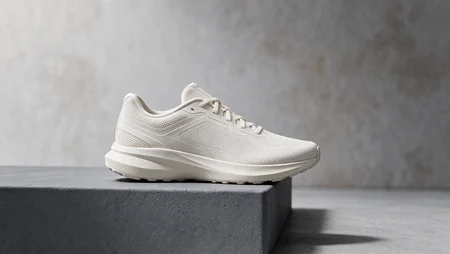
Original · Off-white running shoe
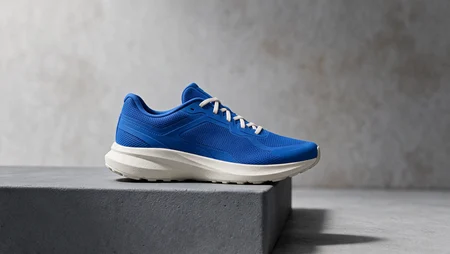
Edit 1 · Cobalt-blue upper
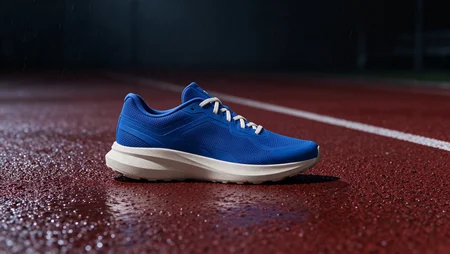
Edit 2 · Rain-soaked running track
Frame a Dance Photo With a Transparent PNG

Transparent film border PNG
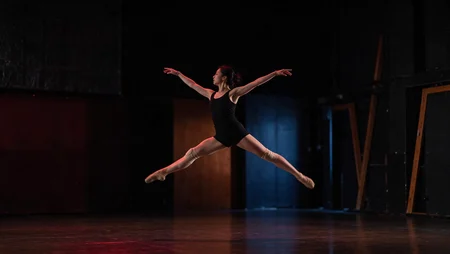
Original dance photo
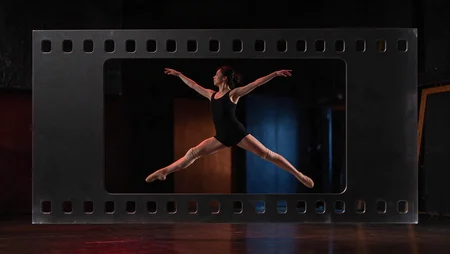
Dance photo with film border
Create Posters With Text
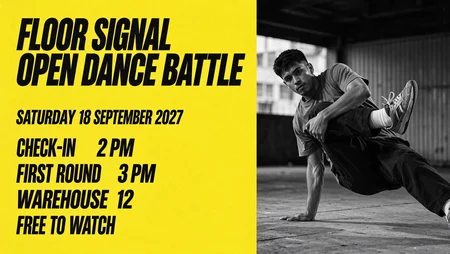
Floor Signal · Dance battle poster
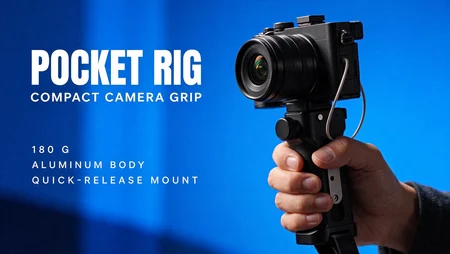
Pocket Rig · Camera grip ad
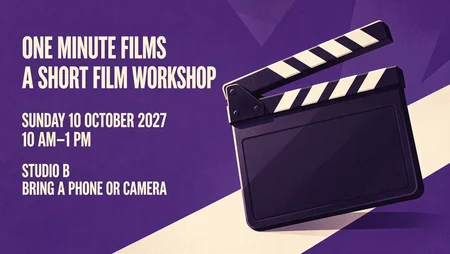
One Minute Films · Workshop poster
Build Visual Briefs from Text and Assets with Seedream 5.5
Start with Seedream 5.5 for text-to-image creation or reference-guided editing. Choose the composition and output settings that suit your next visual project.
Turn a Campaign Brief into an Image
Write the product, audience, setting, and intended mood in your prompt. Start with one composition that communicates the main campaign idea.
Refine Images through Targeted Edits
Use a previous result as a reference and describe the next change. Seedream 5.5 is designed to preserve untouched details more consistently across successive edits.
Frame for Different Deliverables
Pick from the form’s aspect ratios when preparing a feed visual, wide banner concept, or vertical campaign draft.
Choose Resolution and Reference Images
Select 1K, 1.5K, or 2K output and add up to ten reference images in this form. Review the selected options and credit cost before generating.
More Natural Detail and Clearer Text with Seedream 5.5
Explore the model’s improvements in realism, text rendering, and editing consistency when developing images for design and marketing.
Natural Lighting and Materials
Develop portraits and product scenes with more lifelike skin, fabric, and surface detail, with less excessive shine or overexposure.
Clearer Lettering in Visual Layouts
Explore posters, packaging concepts, and information graphics with improved small-text rendering. Specify the exact wording and proofread the generated text.
Connect Still Images to Video Planning
Develop scene frames that communicate the intended composition before separately planning motion, camera direction, and transitions.
Build on a Consistent Visual Direction
Reuse reference images and focused instructions to explore related designs. Describe which details to keep and which to change, then compare each result.
Plan Launch Visuals and Campaign Frames with Seedream 5.5
Use generated drafts as working material for review, layout planning, and further design.
Product Launch Directions
Test a hero-product setting for a launch page or teaser. Check proportions, packaging, and brand details against the original asset.
Campaign Layout Studies
Explore promotional compositions with a headline, product details, and supporting imagery. Check text accuracy and leave room for final layout adjustments.
Video Storyboard Frames
Establish a scene’s subject placement, environment, and lighting as a still before developing the corresponding video shot.
Seasonal Creative Refreshes
Explore a new palette or setting for an existing campaign concept while keeping the product brief and audience consistent.
How to Generate and Edit with Seedream 5.5 on Open Creati
Describe your image, add references if needed, and choose your output settings. For another edit, use the result as a new reference and specify the changes.
Enter the campaign subject, setting, and visual direction, then attach any reference assets
Keep Seedream 5.5 selected and choose the aspect ratio, resolution, and output count
Generate the concept and review product details before preparing another variation
Seedream 5.5 Image Generation and Editing FAQ
Discover More Creative Tools
Browse video effects, image templates, and free tools for your next edit.
Discover AI Video and Image Models
Explore model families and versions for creating images and videos.